
Best Minecraft Pixel Art Editors: PixelStacker, MCStacker
Compare Minecraft pixel art editors by documented exports, layered colors, Bedrock app claims, and this site's verified grid-to-material workflow.
Choose the output before choosing the editor
An editable grid, a packaged datapack, a layered schematic, and a Bedrock import solve different building jobs. Start with the file or instructions you need in Minecraft, then check the tool's version and installation requirements.
This comparison covers PixelStacker, MCStacker Murals, Minecraftart.org, mobile listings, and this site's Blueprint and Draw editors. It does not rank their image quality or claim that one produces the most accurate artwork.
Evidence and comparison method
Official repositories, product pages, and store listings were checked on October 11, 2026. Third-party features below are attributed to those sources; we did not install or run these third-party products for this update. An app-store claim is not proof that an import works on your device or current game version.
Our own output evidence is narrower and reproducible: the worked blueprint provides a pre-filled grid and counted materials, while ten editable patterns provide numbered grids and checked block totals. This is browser output verification, not a test of all exports inside Minecraft. See How We Test for that boundary.
Compare four things: whether you can edit the result, the output format, the game-side installation needed, and the materials or placement guidance. Do not choose from a preview image alone.
| Building job | Candidate | Source-supported output | What to check first |
|---|---|---|---|
| Layered glass-over-solid colors | PixelStacker | Multi-layer art; release notes document .nbt and Sponge 3 .schem3 | Release, platform requirements, and compatible import tool |
| Packaged Java command mural | MCStacker Murals | Datapack, function files, and survival materials | Command limits, placement direction, and loaded chunks |
| Browser conversion and editing | Minecraftart.org | Editor plus command, .mcfunction, and .schematic options | Compatibility of the selected output |
| Phone-based Bedrock placement | The mobile listings below | Store-described conversion and in-world placement | Exact developer, app version, permissions, and import behavior |
| Editable plan and material counts | Minecraft Pixel Art | Grid, shopping list, Java commands, .mcfunction, structure .nbt, PNG, and mobile reference | Manual Bedrock build versus Java export requirements |
PixelStacker: layered colors
PixelStacker's official repository describes combining stained glass with solid blocks for additional color matches. This is a different output model from this site's one-block-per-cell editor.
GitHub marks 1.21.5c as the latest stable release in the reviewed listing; newer pre-releases should be evaluated separately. The 1.21.5 release notes document .nbt and Sponge 3 .schem3 export. Read the selected release's instructions before relying on a game version or importer.
Choose it when layered color combinations matter more than a simple one-block grid. We have not benchmarked its color accuracy, checked touch controls, or verified every platform. A schematic output still needs a compatible game-side consumer.
MCStacker Murals: packaged command output
The official Murals page offers image conversion, placement settings, block selection, datapack/function output, and a survival-materials option. It recommends starting around 250×250 pixels or smaller for processing speed.
The page reports a 32,767-character command-block limit and a 65,536-command function-file limit, with large datapacks split across functions. These are that page's documented constraints; check the current Minecraft version before depending on them. It warns that its command-block minecart method no longer works from Minecraft 1.21.3. It also explains that unloaded chunks can require rerunning a function near an unfinished area.
Choose MCStacker when packaged datapacks, large-mural splitting, or placement-direction controls are essential. Those remain differences from this site's plain .mcfunction download, which is not a complete datapack ZIP.
Minecraftart.org: browser editing and export
Minecraftart.org describes a browser editor with automatic conversion, manual editing, command output, .mcfunction, and WorldEdit/MCEdit .schematic exports. Verify the format and importer you intend to use rather than treating all schematic formats as interchangeable.
Its privacy policy states that images are processed locally and not uploaded or stored. That is the site's statement; this comparison did not independently inspect its network behavior.
Choose it as a candidate when you want browser editing with those documented export paths. We have not compared editing speed, conversion quality, or mobile usability against other tools.
Mobile Bedrock apps: verify the exact listing
The Android Photocrafter listing describes image conversion, 3D placement, block counts, and Bedrock/PE addon use. The iOS PixelArt Builder listing describes MCPE import and automatic placement, but has a different developer identity.
Treat them as separate products. Similar names do not establish feature parity or a common vendor. We did not test either app's import or confirm an exported file extension. Check the exact listing, supported game version, permissions, and any payment or advertising terms before installing.
If you prefer a readable reference while playing Bedrock, use this site's manual Bedrock workflow. Its Java .nbt and .mcfunction outputs are not Bedrock import files.
Minecraft Pixel Art: edit, count, and follow a plan
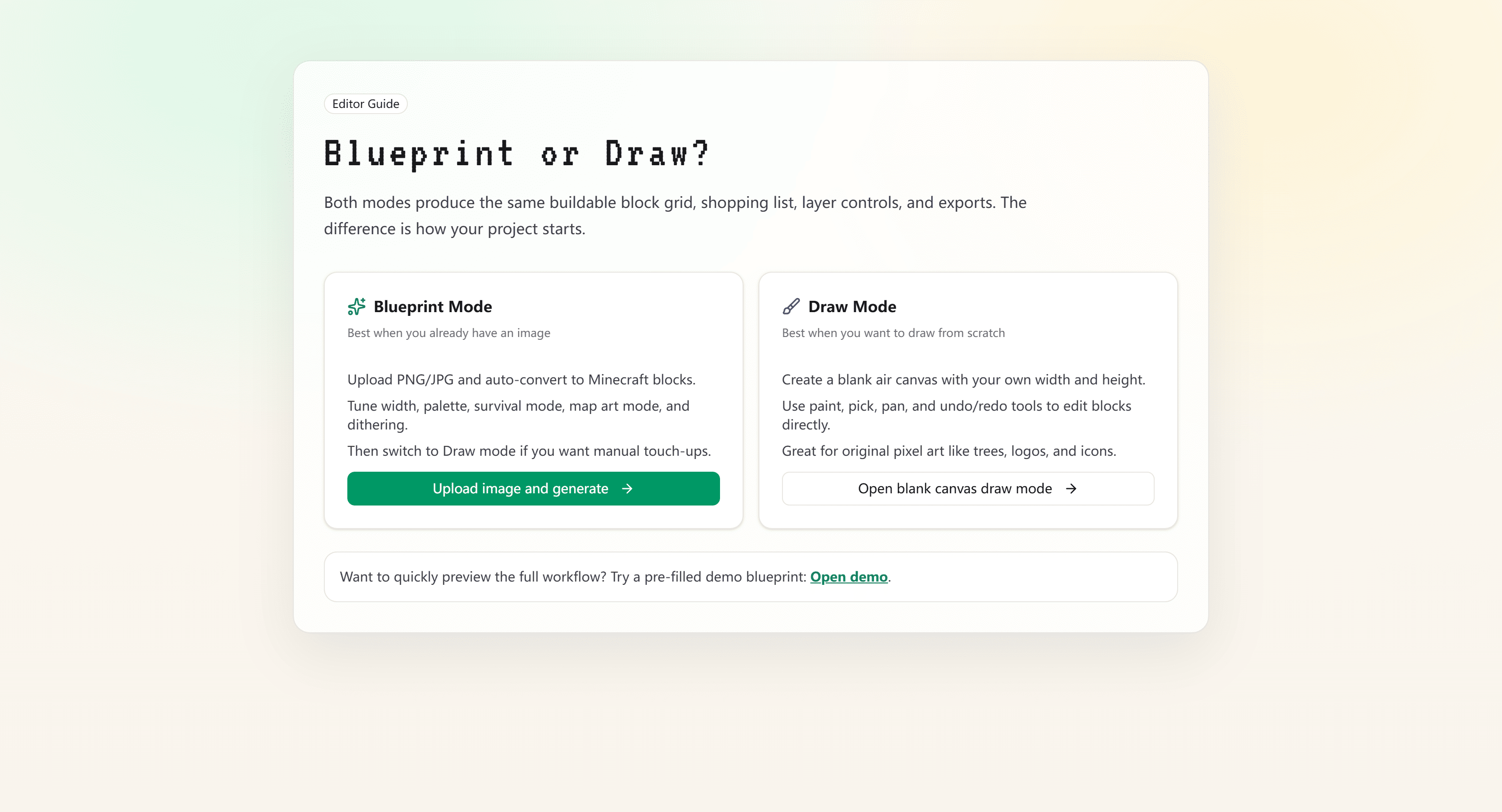
Use Blueprint to convert an image or Draw to paint a grid manually. The same grid drives the material list, layer guidance, PNG, mobile reference, and Java exports.
Try the worked example before uploading a large image: open its plan, compare the shown dimensions and block totals with the guide, then use the layer view to read the build order. This gives you an observable output to evaluate rather than a feature list.
The Java command export anchors at the execution position, extends right and upward, and skips air cells. It requires cheats or operator permission. A downloaded .mcfunction must be installed in a datapack; the site does not package that datapack or automatically split very large outputs.
The .nbt file is a Java structure file. Litematica supports importing that format in compatible builds, but it is not native .litematic, and renaming the extension does not convert it. We have checked the producer's binary structure; this comparison does not claim a fresh in-game import test.
Palette Builder exports a planning list. It does not automatically install a selected catalog palette in either editor, which uses a curated subset of blocks.
A practical selection check
- Choose manual instructions, a Java structure, commands, a packaged datapack, or a Bedrock-specific import.
- Use a small image with clear edges and a limited palette first.
- Check the resulting dimensions, block choices, and material count.
- If exporting, test the file in the exact compatible game/importer setup before producing a large build.
- Compare layered tools separately from one-block tools: their material cost and placement differ.
For this site, start with Blueprint versus Draw and the block-choice guide. For external products, follow the official links above. Report a correction with the tool, version, source, and claim that changed.