
Image to Minecraft Blocks: Step-by-Step Guide
Learn how to turn any image into Minecraft blocks with the right width, palette, block counts, and build steps using Blueprint mode from upload to build.
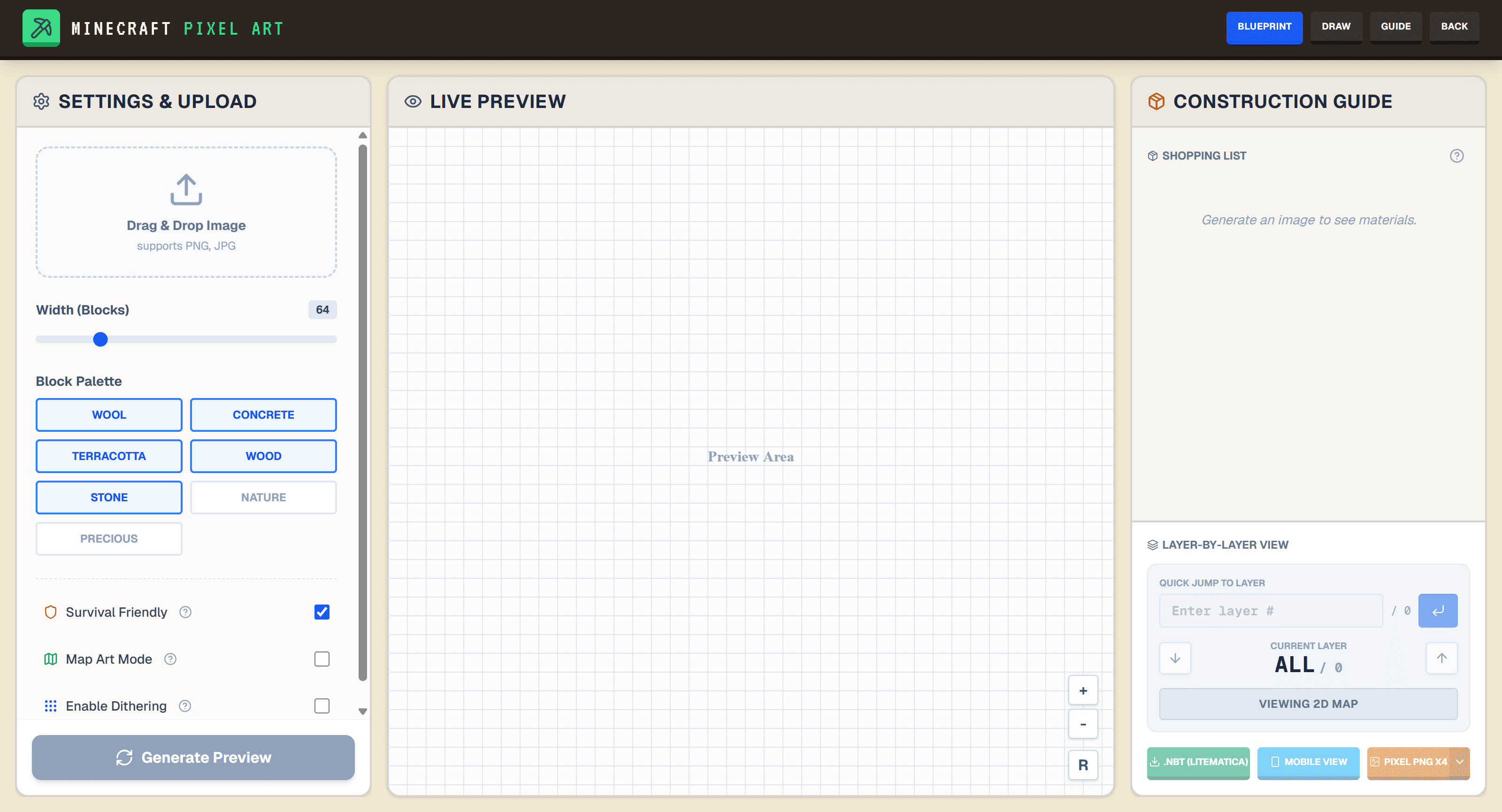
Image to Minecraft Blocks: the practical workflow
If your project starts with an existing logo, photo, sprite, or drawing, the fastest path is not manual painting. The right workflow is to convert the source image into a Minecraft block blueprint first, then refine the result only where it matters.
That is the real meaning behind the search term image to Minecraft blocks. People usually do not want a vague image effect. They want a plan they can actually build: block colors that make sense, dimensions that fit the project, and a count of what to gather before they start placing blocks.
This guide shows how to do that with Blueprint Mode, when to switch to Draw Mode, and what to check before committing to a large mural or map-art build.
What "image to blocks" should produce
A useful converter should give you more than a pixel preview.
You want:
- a clear Minecraft-sized width and height
- block choices that match the image closely enough to look intentional
- a buildable palette instead of random decorative blocks
- a block count and shopping list
- a layer or viewing mode you can follow while building
If the tool only recolors the image and stops there, you still have most of the hard work left.
Step 1: Start with the right source image
Most conversion problems happen before the upload.
Good source images usually have:
- strong silhouettes
- clear separation between foreground and background
- limited noise
- a shape that still reads when reduced
Weak source images usually have:
- tiny details everywhere
- heavy gradients
- realistic textures
- busy backgrounds that become visual clutter once converted
If you are unsure, make a quick copy of the image and crop it more tightly first. A smaller, cleaner frame often beats a "full" image with too much information.
Step 2: Choose the Minecraft width before you care about perfection
Start from Blueprint Mode and set a width that matches the kind of build you actually want once you open the editor.
As a practical rule:
- 16 to 32 blocks wide is useful for icons, signs, and simple faces
- 48 to 96 blocks wide is a good range for murals and detailed logos
- 128+ blocks wide is where material planning and build discipline start to matter a lot more
Do not start with the biggest possible canvas. Start with the smallest size that still preserves the idea of the image. If the shape works small, scaling up later is much safer than shrinking a chaotic conversion.
Step 3: Tune the palette instead of accepting the first pass
The first conversion is a draft, not a final answer.
After upload, review these decisions:
Use a practical block family
If the build is for survival, avoid fancy blocks early. Narrow the palette to block families you can realistically gather.
Useful families include:
- concrete
- wool
- terracotta
- stone-like blocks
This keeps the result closer to what you can really build in a world instead of what looks good only inside the browser.
Watch for texture noise
Some blocks match a color numerically but still look wrong because their textures are too busy. Flat-looking blocks usually make better "pixels" than patterned blocks.
If the output feels noisy, swap toward cleaner materials even if the color is slightly less accurate.
Check the dark and light extremes
Outlines, shadows, and highlights are where conversions break fastest. Look closely at:
- black areas becoming muddy gray
- white areas flattening into one surface
- skin tones shifting too orange or too pink
If those areas fail, the whole image usually feels off even when the middle colors are acceptable.
Step 4: Review the block plan, not just the preview
At this point, stop looking at the image as art and start looking at it as a build.
Ask:
- Does the main shape still read from a distance?
- Are the edges clean enough to place by hand?
- Are the important colors separated clearly?
- Would I still choose this width if I had to gather the blocks myself?
This is where Blueprint vs Draw matters. Blueprint mode is ideal when the uploaded image already defines the composition. If the result is close but needs hand-fixing, generate first and then move into Draw Mode for manual edits.
Step 5: Use block counts before you build
Large projects are rarely blocked by conversion quality alone. They fail because the material plan is bad.
Before you build, use the shopping list and block totals to answer:
- Which blocks dominate the build?
- Which ones are expensive or slow to gather?
- Does the project still make sense at this width?
- Should I simplify the palette before starting?
If your main need is material math and stack planning, open the worked 16 × 16 blueprint example next. It shows the exact grid, material totals, and stack math produced by the shipped demo.
Step 6: Build with the right viewing mode
Once the conversion looks right, the next question is how you will follow it while building.
Useful options include:
- full blueprint view for quick reference
- layer guidance for structured placement
- mobile viewer or QR sharing when the browser is not on the same screen as the game
This is where a usable blueprint workflow becomes different from a basic converter. The goal is not only to make the preview. The goal is to make placement easier.
When to switch to Draw Mode
The best results often combine both workflows.
Use Draw Mode after Blueprint mode when you need to:
- clean a face or logo edge
- replace one or two ugly colors
- remove visual noise from a background
- adjust highlights manually
- sketch extra details that the source image did not provide well
Start with conversion when the image already contains the design. Start with Draw when you want to design the composition yourself from a blank grid.
Common mistakes in image-to-block conversions
Starting too large
Huge canvases make weak images look more complicated, not better. Start smaller and scale only if the result holds up.
Ignoring the palette
If the output uses the wrong materials, it does not matter that the preview is technically close. Minecraft pixel art depends on practical block choices.
Building from preview alone
A visual preview is not enough. You need counts, a shopping list, and a way to follow the build.
Trying to save every detail from the source image
Minecraft block art is a reduction process. If a detail disappears at build scale, remove it instead of forcing it.
Quick decision guide
| Situation | Best next move |
|---|---|
| You already have an image and want a block plan | Start with Blueprint Mode |
| The conversion is close, but edges or colors need hand-fixing | Switch to Draw Mode |
| You need to decide whether Blueprint or Draw fits the project | Read Blueprint vs Draw |
| You care most about stacks, shopping list, and material planning | Open the worked blueprint example |
| You are building for map colors rather than texture colors | Read Minecraft Map Art Tutorial |
FAQ
What is the best image size to upload?
There is no single best input size. What matters more is how clean the image is and what width you choose inside the blueprint tool.
Should I use a photo?
Only if the subject still reads clearly when simplified. Logos, sprites, icons, and illustrations usually convert more reliably than detailed photos.
Do I need to use Draw Mode after conversion?
Not always. Use it when the conversion is mostly correct and only a few areas need manual cleanup.
Is image to Minecraft blocks the same as map art?
Not exactly. Standard conversion targets block textures and normal viewing. Map art uses map colors and has different constraints. If that is your goal, follow the map art tutorial instead of a generic conversion workflow.
Next step
If you already have the source image, go straight to Blueprint Mode and test a smaller width first.
If you want to inspect planning output before you commit, continue with the worked blueprint example.